Upgrade Distributed Splunk Environment
Requesting Access to software
The UXM Splunk App is available for download from Splunkbase.
The UXM Splunk App requires approval before it can be downloaded. Customers must provide their Splunk Username to UXM support.
Please send an email to support@uxmapp.com with:
- Splunk Username
- Company name
Once your Splunk Username has been approved, you can log in to Splunkbase and download the UXM Splunk App.
Please note that older uxmapp installations calls app and indexes for mcg_uxm, newer installations uses uxmapp_ as prefix for app and indexes
Upgrade Splunk
Ensure Splunk are upgraded to newest version on both Search Heads, Indexers and the Heavy Forwarder where UXM is installed, Splunk 9.4 and newer are supported by UXM.
Upgrade Indexer
No upgrades needed.
Upgrade Search Head
-
Update with new apps
Goto Apps -> Manage Apps and upload the uxmapp_sh_YYYY.MM.DD.tar.gz or mcg_uxm_distributed_sh_onpremise_YYYY.MM.DD.tar.gz app file depending on app installed on you system.
Remember to click "Upgrade app checkbox" and click Upload, restart Splunk later when asked.
infoYou can continue if error "Error connecting to /services/apps/local: The read operation timed out" occurs, normally app is uploaded and old app overridden successfully.
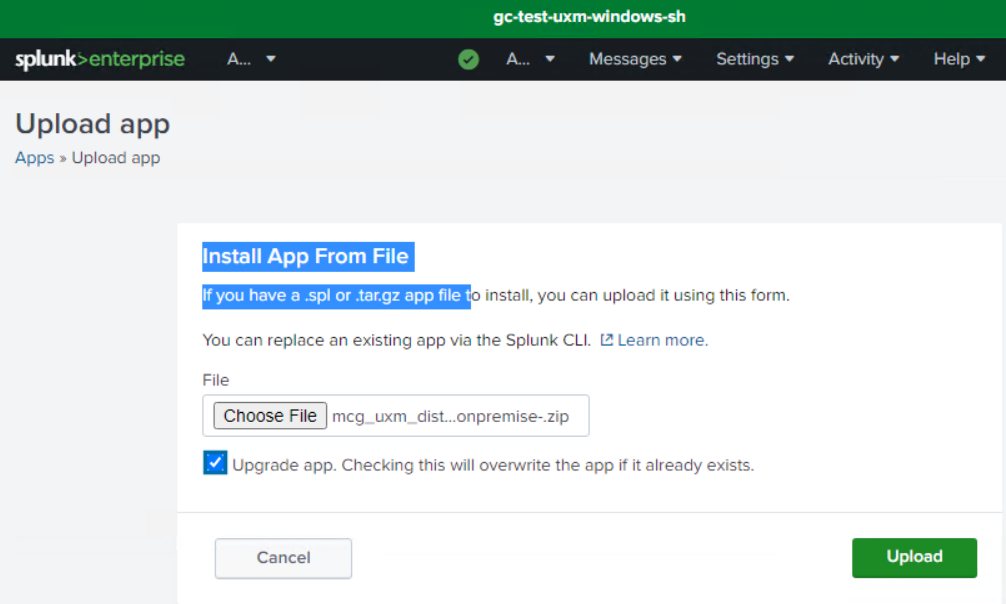
Press restart later if asked.
Upload new uxmapp_waterfall and uxmapp_worldmap visualization apps if released and restart Splunk later.
-
Update permissions for uxm roles
For uxmapp_admin or mcg_uxm_admin role add uxmapp_view_* capabilities if needed, this allows users in role to see menu for configuring uxm and inspecting/opening searches in search on tables/charts.
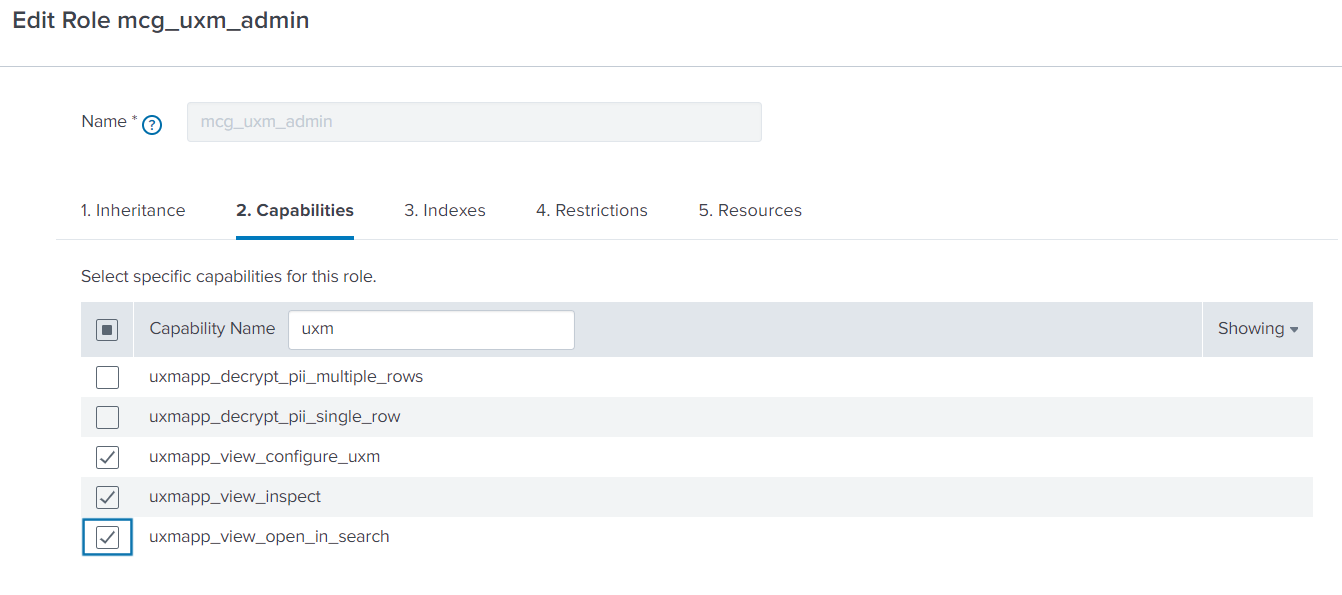
For uxmapp_user or mcg_uxm_user ensure the following capabilities are enabled:
- change_own_password
- edit_own_objects
- export_results_is_visible
- list_all_objects
- pattern_detect
- rest_properties_get
- run_collect
- run_mcollect
- schedule_search
- search
- uxmapp_view_* capabilities if needed
3. Clear CSS/JS caches
Splunk caches CSS/JS files for a long period, open /en-GB/_bump and press Bump version to get Splunk to refresh it's CSS/JS files cache.

-
Enable and delete old input scripts
Open Settings -> Data Inputs -> Scripts
- Delete create_new_web_agents.py (if exists)
- Delete task_tmp_fill_user_and_boottime.py (if exists, moved to update_kvstore.py)
- Delete task_mq_consumer_pcagent_mt.py (if exists, being replaced by Go data parser)
Enable input scripts
-
enable delete_old_files_and_packages.py (Deletes old unused app files and python dependencies, script will disable when done)
-
when upgrading to 2023.12.13: enable distributed_searchhead_23q4_migration.py (Migrates uxmap KVStore collections with new required entries, script will disable when done)
-
when upgrading to 2024.09.04 or 2025.01.28: enable distributed_searchhead_24q1_migration.py (Assigns desktop profiles to SLA's and removes application processes with setup/tmp names, script will disable when done)
You can check if any desktop profiles are left with missing SLA's assigned, they can be mapped by editing and saving them under Administration -> UXM Desktop Agent -> Desktop app monitoring profiles:
| inputlookup ux_profiles_lookup| lookup ux_applications_lookup _key AS application_key OUTPUT name AS application_name| table application_name, name, sla_key -
when upgrading to 2025.12.02: enable distributed_searchhead_25q3_migration.py (Remove deprecated Office tag detection, creates new Alert Templates and notification templates)
-
enable check_license.py
-
enable update_alert_event_summaries.py
-
enable update_applications.py
-
enable update_endpoint_groups.py
-
Update setup settings
Goto Apps -> Manage Apps and select "Set up" for uxmapp or mcg_uxm app to set up hostnames and encrypt passwords.
Enter HTTP Event collector hostname and token if empty.
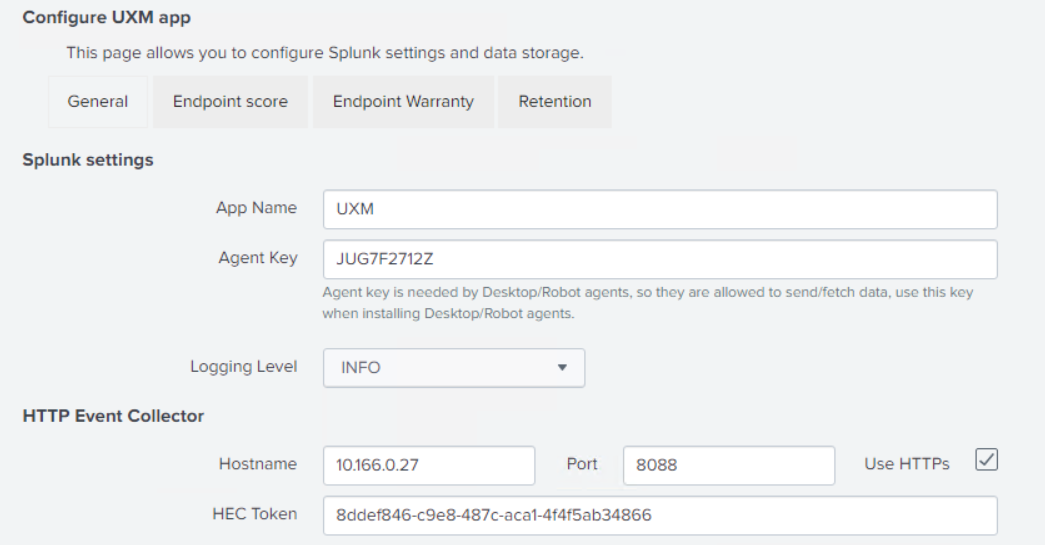
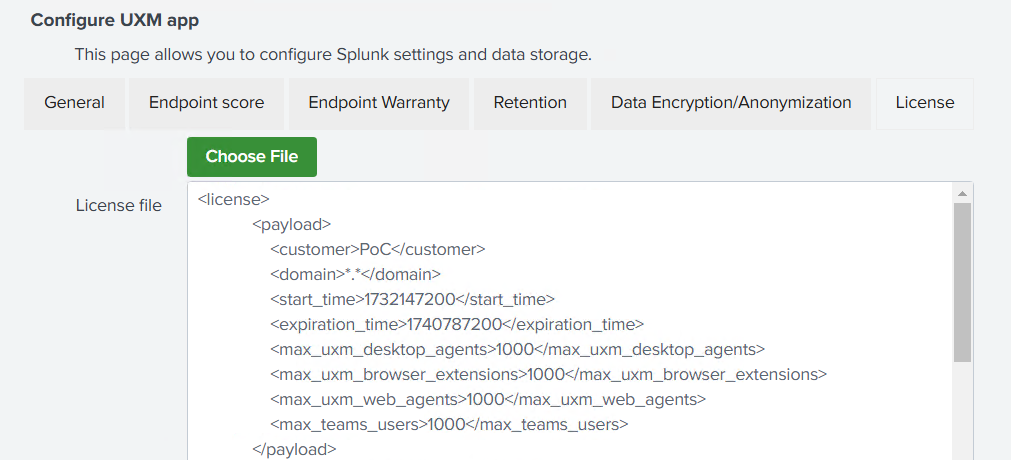
Apply license if needed and press Save. (2024.09.04 and newer requires license to save configuration and process data in consumer scripts)
-
Update monitor settings
Open uxmapp and select Administration -> UXM Desktop agent -> Monitors
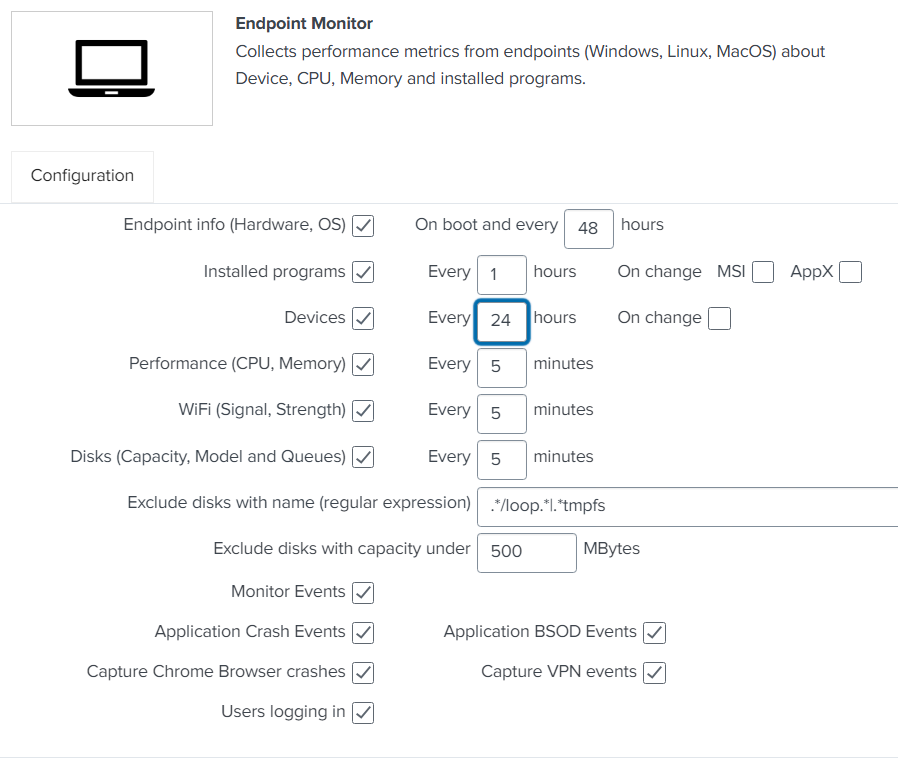
when upgrading to 2023.12.13: Edit Endpoint monitor and enable new event fields for newer agents (keep old monitor events for older agents) and press save.
version 2025.01.28 adds the devices settings to endpoint monitor to collect device name, driver version, status every 24 hours.
-
Overridden dashboards and settings
UXM distributes it's dashboards and settings through uxmapp\default, all changes performed to dashboards and configs inside Splunk is stored under uxmapp\local.
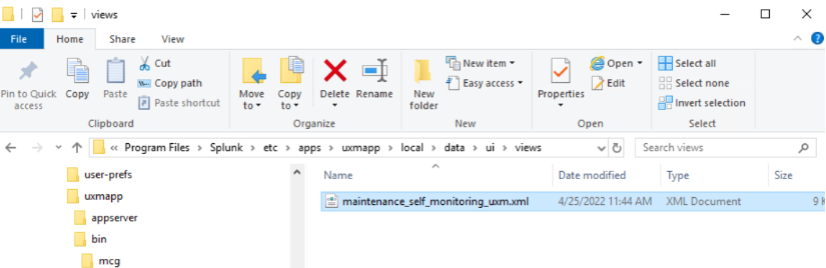
Please ensure that there are no local dashboards overrides our default provided dashboard under C:\Program Files\etc\apps\uxmapp\local\data\ui\views or C:\Program Files\etc\apps\mcg_uxm\local\data\ui\views.
Please compare with the dashboards under C:\Program Files\etc\apps\uxmapp\default\data\ui\views to see if the changes are required and should be kept, restart the splunk server if any changes is made to the files.
-
Restart the Splunk Search Head or hot reload new config
Upgrade Heavy Forwarder
- Ubuntu
- Red Hat
- Windows
-
Upload new Heavy Forwarder app
Upload the mcg_uxm_distributed_hf_onpremise_YYYY.MM.DD.tar.gz under Apps -> Manage Apps, postpone restarting Splunk.
-
Clear Splunk JS/CSS caches
Open /en-US/_bump and click "Bump version" to clear JS/CSS caches.
-
Run setup in app to set hostnames and encrypt passwords
Open Manage Apps -> UXM -> Set up and enter the missing fields for KVStore hostname, HEC hostname and RabbitMQ hostname.
Ensure RabbitMQ user is new uxmapp or old mcg_uxm if RabbitMQ isn't upgraded.
Press Save in bottom, passwords will be encrypted using Splunk's key and UXM will redirect you to the Enterprise Dashboard.
-
Start Splunk processing scripts
Open Splunk and goto Settings -> Data Inputs -> Scripts and ensure that following scripts is enabled.
- enable delete_old_files_and_packages.py (Deletes old unused app files and python dependencies, script will disable when done)
- disable/enable task_mq_consumer_pcagent.py (Will be named consumer1 to consumer4, depending on how much data collector receives)
- disable/enable task_mq_consumer_web.py (Will be named consumer1 to consumer4,
- depending on how much data collector receives)
- enable update_warranty.py if warranty lookups is configured and used.
-
Restart Splunk
Restart "Splunkd Service"
-
Upload new Heavy Forwarder app
Upload the mcg_uxm_distributed_hf_onpremise_YYYY.MM.DD.tar.gz under Apps -> Manage Apps, postpone restarting Splunk.
-
Clear Splunk JS/CSS caches
Open /en-US/_bump and click "Bump version" to clear JS/CSS caches.
-
Run setup in app to set hostnames and encrypt passwords
Open Manage Apps -> UXM -> Set up and enter the missing fields for KVStore hostname, HEC hostname and RabbitMQ hostname.
Ensure RabbitMQ user is new uxmapp or old mcg_uxm if RabbitMQ isn't upgraded.
Press Save in bottom, passwords will be encrypted using Splunk's key and UXM will redirect you to the Enterprise Dashboard.
-
Start Splunk processing scripts
Open Splunk and goto Settings -> Data Inputs -> Scripts and ensure that following scripts is enabled.
- enable delete_old_files_and_packages.py (Deletes old unused app files and python dependencies, script will disable when done)
- disable/enable task_mq_consumer_pcagent.py (Will be named consumer1 to consumer4, depending on how much data collector receives)
- disable/enable task_mq_consumer_web.py (Will be named consumer1 to consumer4,
- depending on how much data collector receives)
- enable update_warranty.py if warranty lookups is configured and used.
-
Restart Splunk
Restart "Splunkd Service"
-
Stop the IIS/WSGI windows service
Run an elevated command prompt and write iisreset /stop to avoid that IIS locks used files.
iisreset /stop -
Stop Splunk processing scripts
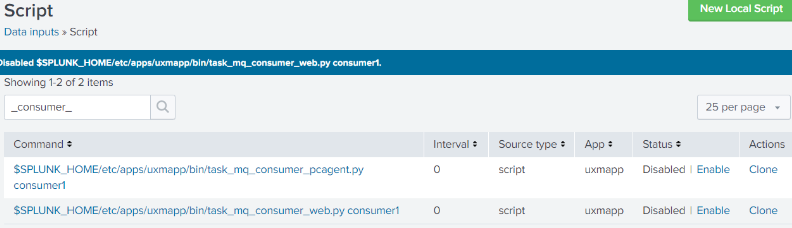
Open Splunk and goto Settings -> Data Inputs -> Scripts and ensure that following UXM scripts is disabled to avoid that they lock files when running under Windows.
- "task_mq_consumer_pcagent.py"
- "task_mq_consumer_web.py".
-
Upgrade to Python 3.13 (If running older Python versions)
Run an elevated command prompt and uninstall the old wfastcgi python version if installed. (Skip if you are on Python 3.13 already)
"C:\Python310\Scripts\wfastcgi-disable.exe""C:\Python311\Scripts\wfastcgi-disable.exe"Uninstall Python Launcher, 3.10 or 3.11 and install newest Python following install guide Install_Python_and_wfastcgi_module
Edit IIS config file C:\Program Files\Splunk\etc\apps\uxmapp\bin\wsgi\web.config or C:\Program Files\Splunk\etc\apps\mcg_uxm\bin\wsgi\web.config and change Python path if it's incorrect
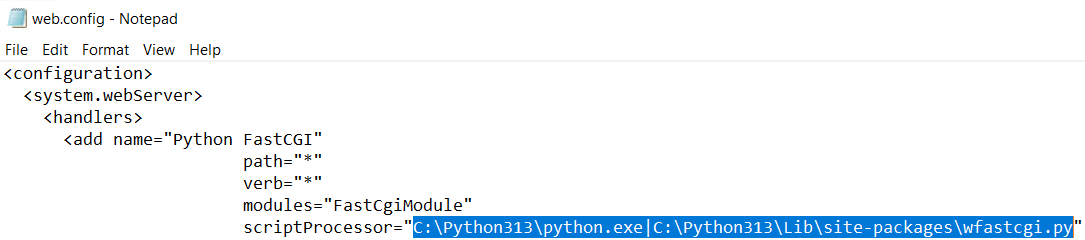
Open eleveated command prompt as administrator and execute:
"C:\Python313\Scripts\pip.exe" install wfastcgiEnable wfastcgi in IIS, see https://pypi.org/project/wfastcgi/
"C:\Python313\Scripts\wfastcgi-enable" -
Upgrade RabbitMQ 4.1.6
warningPlease note that you can only upgrade to RabbitMQ 4.0 from RabbitMQ 3.13.7 Moreover, stable feature flags have to be enabled before the upgrade, see more here: https://www.rabbitmq.com/docs/upgrade
Check you are on RabbitMQ 3.13 or upgrade to 3.13.7 first.
cd "C:\Program Files\RabbitMQ Server\rabbitmq_server-3.13.7\sbin"rabbitmqctl versionEnable all feature flags before upgrading to 3.13 or 4.x
cd "C:\Program Files\RabbitMQ Server\rabbitmq_server-3.13.7\sbin"rabbitmqctl enable_feature_flag allStop the RabbitMQ service and uninstall old Erlang 22/23/24/25 version by removing it from program and features, Older Erlang 26 can be upgraded without uninstalling old version first:
Install newest erlang 26 by downloading newest 26 release: https://github.com/erlang/otp/releases
- Direct link: https://github.com/erlang/otp/releases/download/OTP-26.2.5.16/otp_win64_26.2.5.16.exe (Install with default options)
See compatibility matrix between erlang and rabbitmq here: https://www.rabbitmq.com/docs/which-erlang
Download newest 4.1.6 release from https://github.com/rabbitmq/rabbitmq-server/releases
- Direct Link: https://github.com/rabbitmq/rabbitmq-server/releases/download/v4.1.6/rabbitmq-server-4.1.6.exe
- Or newest 3.13.7 release if upgrading to 3.13 first: https://github.com/rabbitmq/rabbitmq-server/releases/download/v3.13.7/rabbitmq-server-3.13.7.exe Run installer, confirm to uninstall old version and install 4.1.x with default settings.
Enable all features after upgrading by running command in elevated prompt:
cd "C:\Program Files\RabbitMQ Server\rabbitmq_server-4.1.6\sbin"rabbitmqctl start_apprabbitmqctl enable_feature_flag allYou can verify the version and that RabbitMQ runs by opening http://localhost:15672/ in a browser and logging in with the RabbitMQ username/password from $SPLUNK_HOME\etc\apps\mcg_uxm\local\setup.conf
Re-run RabbitMQ configuration if RabbitMQ has errors:
cd "C:\Program Files\RabbitMQ Server\rabbitmq_server-4.1.6\sbin"rabbitmq-plugins enable rabbitmq_managementrabbitmqctl add_user uxmapp GeneratedRabbitMQPasswordrabbitmqctl set_user_tags uxmapp monitoringrabbitmqctl add_vhost /uxmapp/rabbitmqctl add_vhost /mcg_uxm/rabbitmqctl set_permissions -p /uxmapp/ uxmapp ".*" ".*" ".*"rabbitmqctl set_permissions -p /mcg_uxm/ uxmapp ".*" ".*" ".*"rabbitmqctl delete_user guestOld Encrypted passwords can be viewed/decrypted with: "\Program Files\Splunk\bin\splunk.exe" show-decrypted --value $7$57ENCRYPTED_PASSWORD)
-
Upload new Heavy Forwarder app
Upload the mcg_uxm_distributed_hf_onpremise_YYYY.MM.DD.tar.gz under Apps -> Manage Apps, postpone restarting Splunk.
-
Setup permissions to folders
Setup permissions to folders to allow IIS to decrypt encrypted passwords: See Configure_folder_permissions
icacls "C:\Program Files\Splunk\etc\apps\mcg_uxm" /grant "IIS AppPool\UXM":(OI)(CI)(RX) /Ticacls "C:\Program Files\Splunk\etc\apps\uxmapp" /grant "IIS AppPool\UXM":(OI)(CI)(RX) /Ticacls "C:\Program Files\Splunk\etc\apps\search\lookups" /grant "IIS AppPool\UXM":(OI)(CI)(RX) /Ticacls "C:\Program Files\Splunk\share" /grant "IIS AppPool\UXM":(RX) /Ticacls "C:\Program Files\Splunk\etc\auth\splunk.secret" /grant "IIS AppPool\UXM":(R)icacls "C:\Program Files\Splunk\var\log" /grant "IIS AppPool\UXM":(OI)(CI)(R,W,M) /T -
Clear Splunk JS/CSS caches
Open /en-US/_bump and click "Bump version" to clear JS/CSS caches.
-
Run setup in app to set hostnames and encrypt passwords
Open Manage Apps -> UXM -> Set up and enter the missing fields for KVStore hostname, HEC hostname and RabbitMQ hostname.
Ensure RabbitMQ user is new uxmapp or old mcg_uxm if RabbitMQ isn't upgraded.
Press Save in bottom, passwords will be encrypted using Splunk's key and UXM will redirect you to the Enterprise Dashboard.
-
Start Splunk processing scripts
Open Splunk and goto Settings -> Data Inputs -> Scripts and ensure that following scripts is enabled.
- enable delete_old_files_and_packages.py (Deletes old unused app files and python dependencies, script will disable when done)
- disable/enable task_mq_consumer_pcagent.py (Will be named consumer1 to consumer4, depending on how much data collector receives)
- disable/enable task_mq_consumer_web.py (Will be named consumer1 to consumer4,
- depending on how much data collector receives)
- enable update_warranty.py if warranty lookups is configured and used.
-
Restart Splunk
Restart "Splunkd Service" from the Windows Service Manager.
-
Start the IIS/WSGI windows service
Run an elevated command prompt and write iisreset /start, to start the /data/* endpoints for receiving data.
iisreset /start
Validate setup
-
Test that endpoints works
Open https://localhost/data/browser in a browser and validate that the HF works and returns "no get/post data received"

-
Check for errors
Open the UXM app on the Heavy Forwarder, the default dashboard will show status on installation and report any errors detected.
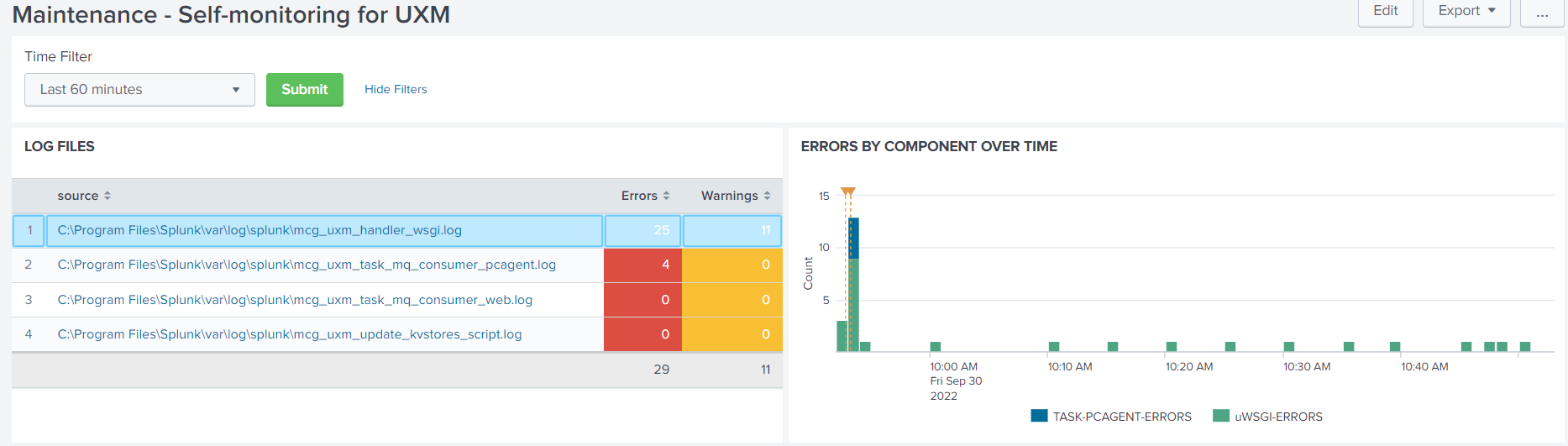
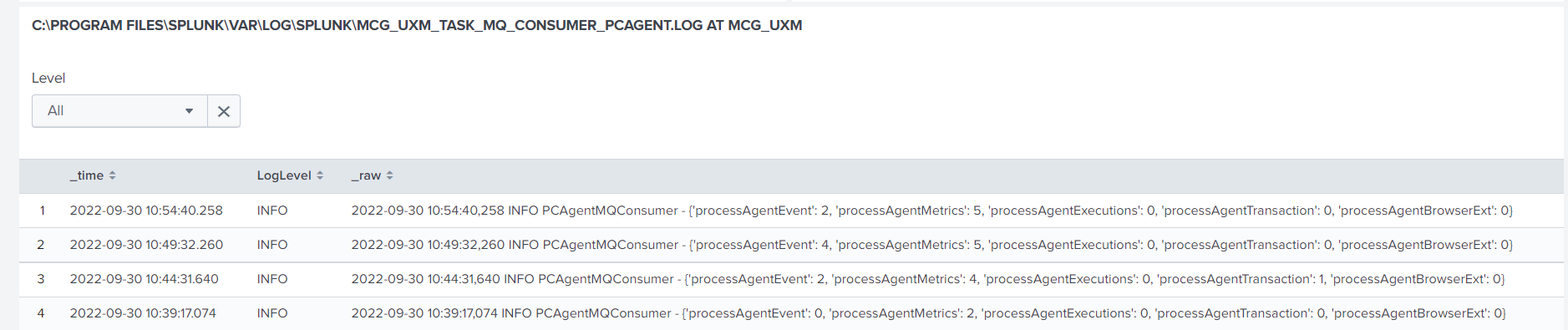
PCAgent and Web consumer will show following info if everything works: