Creating new profiles
Creating new profiles
The Desktop agent only see events from processes it's configured to monitor, create a dummy rule that only contains the processName and events=”all”, this will enable the monitorng of the selected application.
<?xml version="1.0" encoding="UTF-8" standalone="no"?>
<View timeout="180" name="Dummy" revision="1">
   <Monitor>
      <processName value="outlook" limit="processId" disabled_events="" />
   </Monitor>
</View>
Create a new folder under Profiles called Test and place the dummy rule there. (Only files in the Profiles root directory is deleted/synched with the UXM collector at every restart and 60 minutes sync)
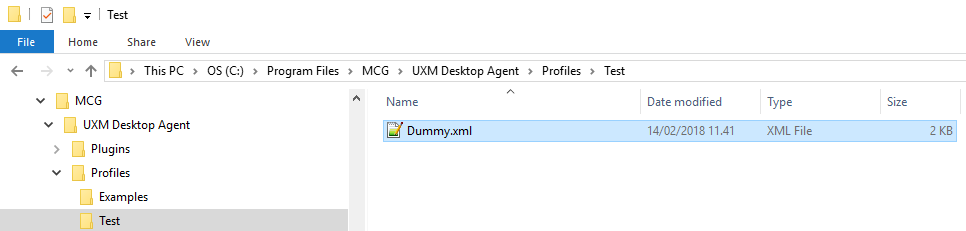
Restart the “UXM Desktop Agent” service so it loads the new Profiles, you should now be able to see events from the process under %PROGRAMDATA%\MCG\UXM PC Agent\Logs\PCAgentUI.exe_{SessionID}.log, when you click around the the monitored application.
Finding events
Logger level has to be set to debug mode in C:\Program Files\MCG\UXM PC Agent\PCAgentUI.properties to see events in the logfiles which we can create rules from.

The file %PROGRAMDATA%\MCG\UXM PC Agent\Logs\PCAgentUI.exe_{SessionID}.log contains the events from the monitored applications.
You can use Notepad++ and set Language to JSON or Lua to get color highlighting.

Try to perform the actions in the program you want to create rules on and look for good start/complete events that happens every time.
Remember that you can use Mouse/Keyboard and Hotkeys in many application, we need to create rules for these combinations.
Also, copy the Start events to the Incomplete events, so a rule stops monitoring if the same event occurs again. The PC Agent only measure the last action (if a user for example clicks 5 times on New Email), the events would be mixed together, making it impossible to monitor each click and correlate it with the end events.
Creating the XML monitoring profile
The profile has to consist of events that Starts, Stops or Invalidates the measurement, like the following example:
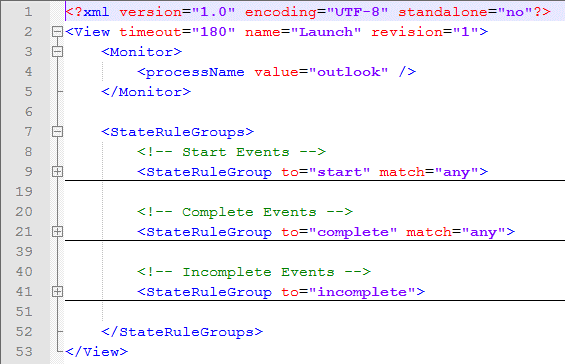
A dummy example is placed under C:\Program Files\MCG\UXM Desktop Agent\Profiles\Examples and rules for standard application like Outlook, Word, Excel, Navision and Dynamics AX can be downloaded from the download section.
View
| Attribute | Description |
|---|---|
timeout | Number of seconds to wait from when measurement starts until a Complete event is detected. If the timeout value is reached, the Monitor Rule transitions to an Incomplete state. |
name | Name the Monitor Rule is linked to inside the UXM system. This name is automatically created as a new View. Multiple Monitor Rules can store data under the same view (for example, for multi-language support). |
revision | Increments by 1 each time the Monitor Rule is modified. Used to determine which Monitor Rule version is the most recent. |
debug | Enables or disables debug mode for the Monitor Rule (used for troubleshooting and detailed logging). |
Monitor
Used to control which program that we inject/measure on.
Process Name
| Attribute | Description |
|---|---|
value | Name of the process to monitor. Works with or without .exe. Example: outlook or outlook.exe. |
match | Requires UXM Desktop Agent 2023.01.31+. Defines how the process name is matched. Options: equals (default, case-insensitive exact match), contains (case-insensitive partial match), regex (value treated as a regular expression). |
limit | Limits how events are associated when applications spawn multiple processes. Warning: Setting to none may cause high overhead. Options: processId (default), processName, none. |
disabled_events | Comma-separated list of events to disable to avoid performance issues when events fire too frequently. Common for IE monitoring. Options: ObjectNameChange, ObjectValueChange, ObjectFocus. Example: ObjectNameChange,ObjectValueChange. |
ProcessPath (Optional, new in version 2019.5.16)
| Attribute | Description |
|---|---|
match | Matching method for the process path. Supported value: contains. |
value | Path of the process to monitor when the application can be launched from multiple locations. Example paths: C:\Program Files\MyProgram - Prod\ and C:\Program Files\MyProgram - UAT. Example value: \MyProgram - UAT. |
StateRuleGroups
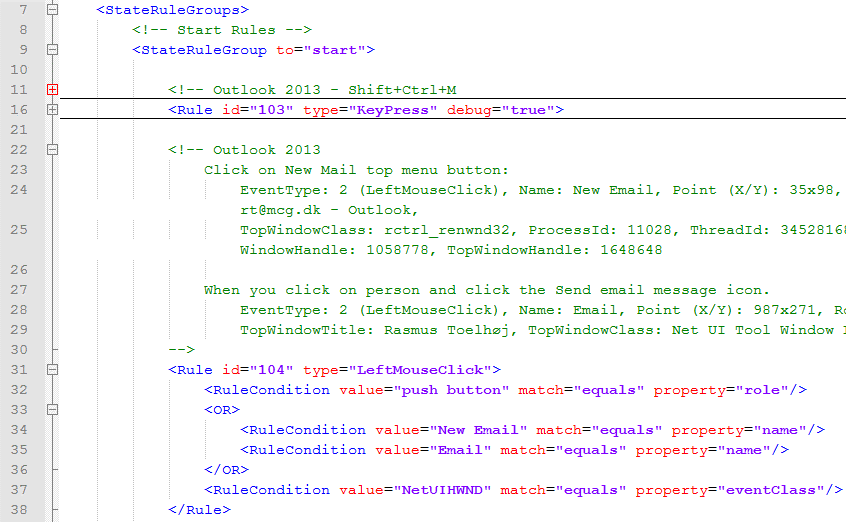
Contains rules for starting a monitor and rules for when is reaches the complete/incomplete or error state.
| Attribute | Description |
|---|---|
to | The Statemachine will change state to one of the following: start, complete, incomplete, failed. |
match | Defines how sub-rules are evaluated. Options: any — change state if any of the sub-rules match; all/and — do we support this? |
Rule
| Attribute | Description |
|---|---|
id | ID that makes it easier to debug and find the rule inside the log files. Start rules use 1xx, complete rules use 2xx, incomplete rules use 3xx, failed rules use 4xx. |
type | Event type to match on. Options include: processLaunch, processExit, LeftMouseClick, LeftMouseDoubleClick, RightMouseClick, KeyPress, ObjectNameChange, ObjectValueChange, ObjectShow, ObjectHide, ObjectFocus, ChildAdded, ChildRemoved, ChildrenInvalidated, ChildrenBulkAdded, ChildrenBulkRemoved, ChildrenReordered, StateChange, LocationChange. |
debug | Set to true to debug this rule. Debugging writes more information in the log files when comparing each value in the rule and sends all events to the UXM collector for troubleshooting rules with high or low response times. |
Rule Condition
| Attribute | Description |
|---|---|
property | Can be any of the following, matching the event value to the value field in the XML RuleCondition: role, name, value, eventClass, firstNonChildWindowTitle, firstNonChildWindowClass, vkey, keyCode (new in version 2021.06.22), modifier, processName (new in version 2021.06.22), parentRole, parentName, parentValue. |
match | Defines how the property value is matched. Options: equals — property must equal value (case-insensitive), contains — true if property contains value, regex — value is a regular expression that matches the property. |
matchBy | Alters the match validation. Options: not — inverts the match. Used to avoid complex regexes, e.g., start measuring on LeftMouseClick if name contains a value. |
| value | The property value to match via the match type (equals, contains, or regex). |
Regex examples
| Action | Character | Example |
|---|---|---|
| Contains | .* | .Outlook. |
| Escape special characters | \ | .Untitled - Message (. |
| Starts with | ^ | ^Calendar.* |
| Ends with | $ | .* - Outlook$ |
OR / AND rules
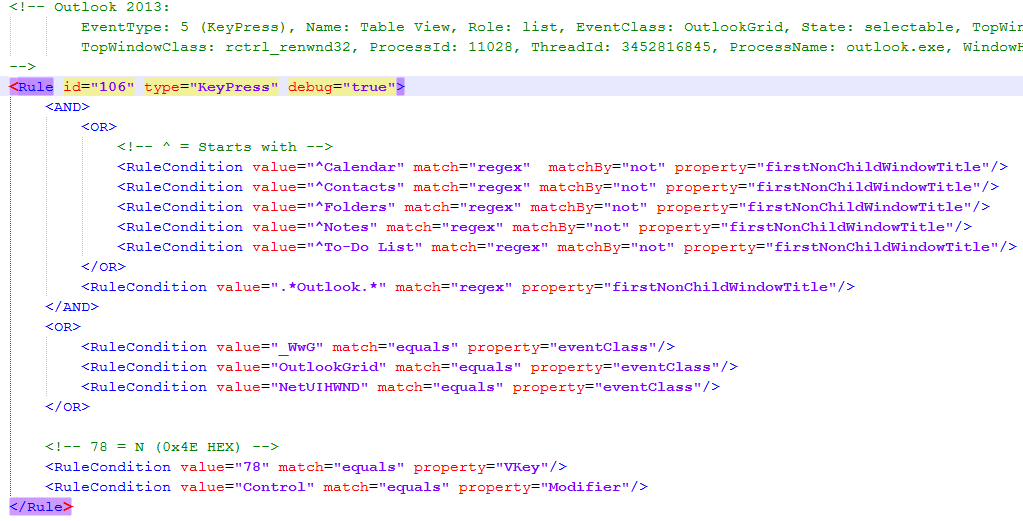
You can create complete rules by using AND OR and matchBy=”not”.
The following rule is matches when:
Ctrl + N is pressed.
eventClass equals _WwG, OutlookGrid or NetUIHWND.
Windows title contains Outlook and doesn’t start with Calendar, Contacts, Folders, Notes or To-Do List.
Testing rules
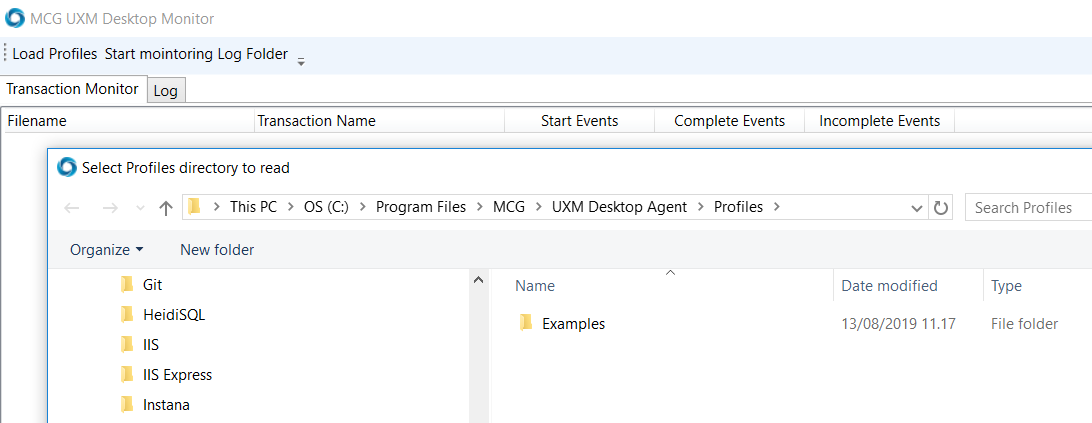
The Desktop Monitor can load profiles and check when their rules is started and completed.
Launch it from C:\Program Files\MCG\UXM Desktop Agent\Recorder\DesktopMonitor.exe
Click "Load Profiles" and select the profile directory C:\Program Files\MCG\UXM Desktop Agent\Profiles
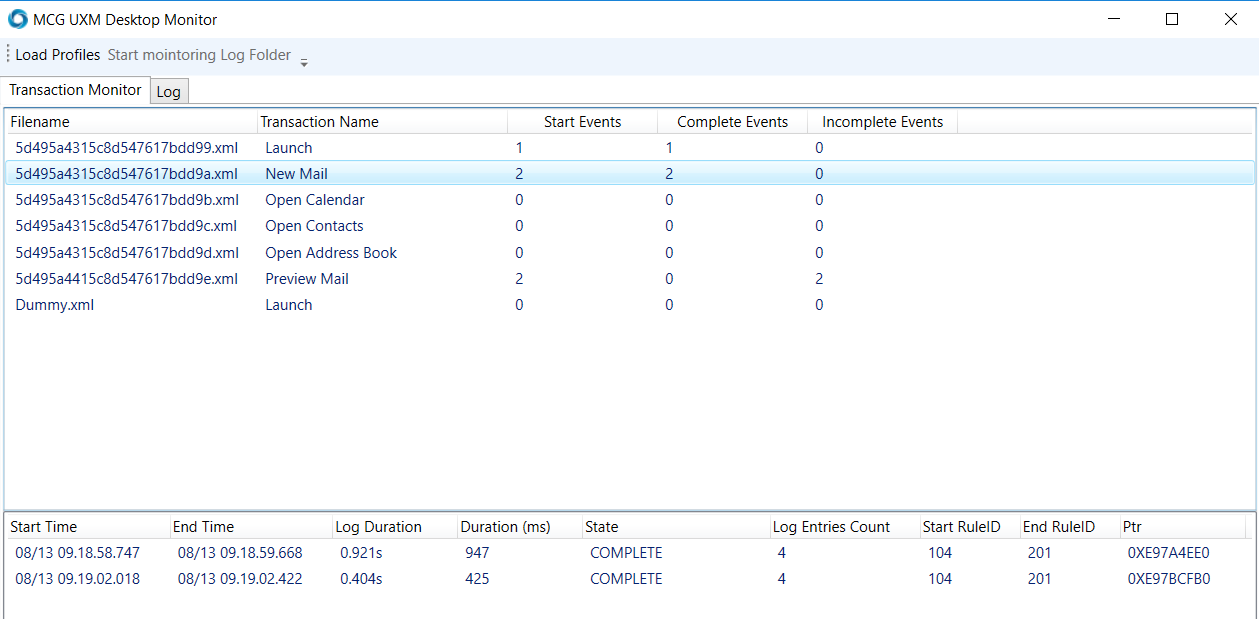
Your profiles and the profiles loaded from the UXM Collector will be displayed, press "Start monitoring Log Folder" to see live statistics on when profile rules starts, completes and is going to incomplete state.
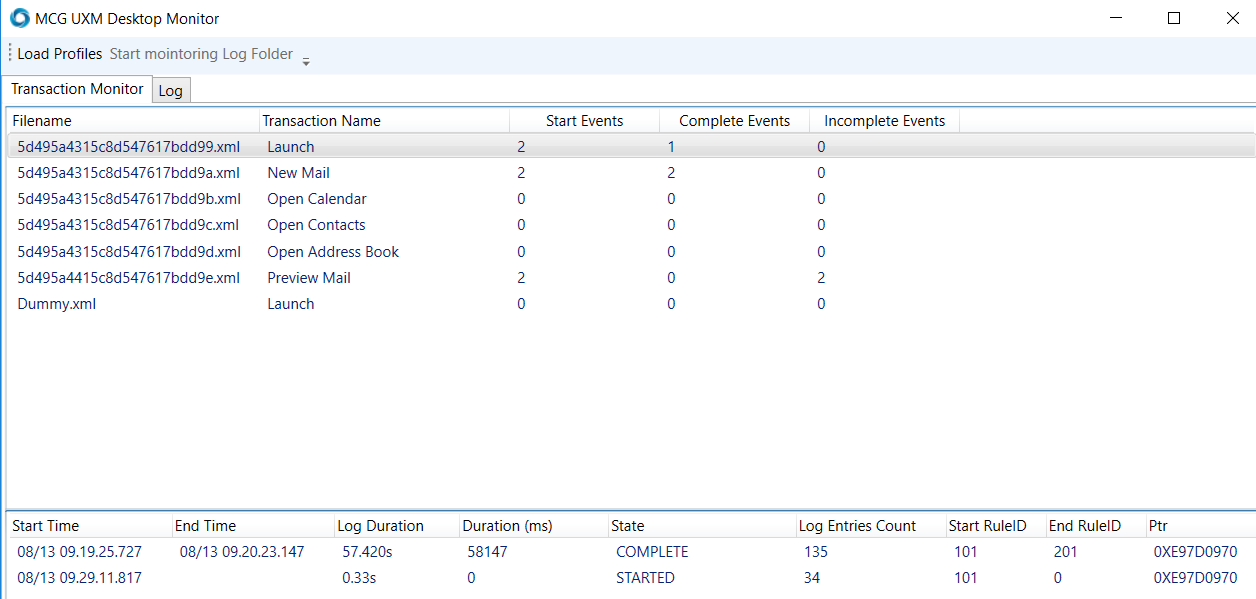
Perform the transaction you are trying to record and validate that it Starts and Completes and that it's "Duration (ms)" is correct.
Debugging rules
Logger level has to be set to debug in C:\Program Files\MCG\UXM Desktop Agent\PCAgentUI.properties to see debug events in the logfiles.
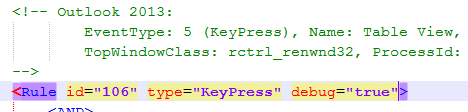
Try to create the event/scenario and view the logfile under %PROGRAMDATA%\MCG\UXM PC Agent\Logs\PCAgentUI.exe_{SessionID}.log.
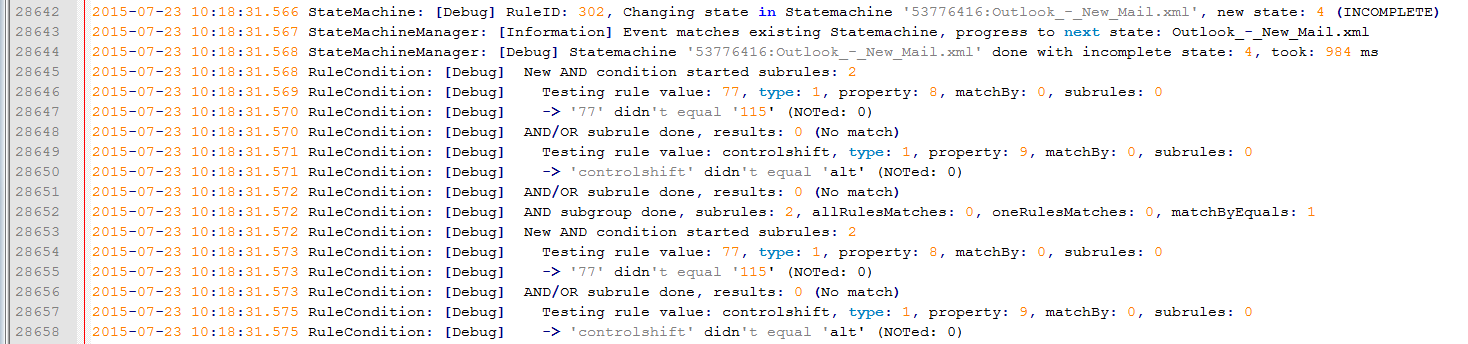
The logfile will now show each RuleCondition and if it matches with the event, it will also show if the AND/OR groups matched.