Monitoring IIS logfiles
IIS Log Collection with Universal Forwarder
A Splunk Universal Forwarder can be used to collect IIS log files from servers.
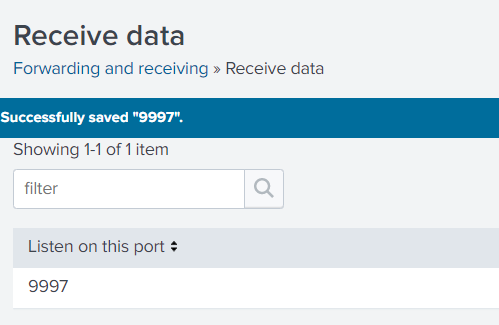
Enable TCP Receiving Port
-
Go to:
Settings → Forwarding and Receiving → Receive Data -
Add a TCP receiving port
- Default:
9997(can be customized)
- Default:
Firewall Configuration
-
Open required ports in:
- GCP (SaaS)
- On-premise servers
-
Required ports:
9997(or your custom port)8089(can be reverse proxied)
Download Universal Forwarder
Download the version matching your Splunk setup:
https://www.splunk.com/en_us/download/universal-forwarder.html
Install Universal Forwarder
Run the following command (replace placeholders accordingly):
msiexec.exe /i splunkforwarder-9.0.2-17e00c557dc1-x64-release.msi AGREETOLICENSE=yes SPLUNKUSERNAME=splunkadmin SPLUNKPASSWORD={GENERATE_PASSWORD} DEPLOYMENT_SERVER=https://customername.uxmapp.com:8089 RECEIVING_INDEXER="customername.uxmapp.com:9997" /quiet
- Replace
{GENERATE_PASSWORD}with your password - Replace
customername.uxmapp.comwith your server DNS
Setup Deployment App
-
Log in to the deployment server or search head configured during installation
-
Run:
cd /opt/splunk/etc/deployment-apps/
mkdir -p deployed_app_name/default
nano deployed_app_name/default/inputs.conf
chown -R splunk:splunk ./deployed_app_name
IIS Monitoring Configuration
inputs.conf
[monitor://C:\inetpub\logs\LogFiles\W3SVC1]
disabled = false
ignoreOlderThan = 30d
sourcetype = uxm:iis
index = uxmapp_iis
props.conf
[uxm:iis]
DATETIME_CONFIG =
INDEXED_EXTRACTIONS = w3c
LINE_BREAKER = ([\r\n]+)
MAX_TIMESTAMP_LOOKAHEAD = 32
NO_BINARY_CHECK = true
SHOULD_LINEMERGE = false
category = Web
description = W3C Extended log format produced by IIS
detect_trailing_nulls = auto
disabled = false
pulldown_type = 1
Reload Deployment Server
Run:
sudo runuser -l splunk -c '/opt/splunk/bin/splunk reload deploy-server'
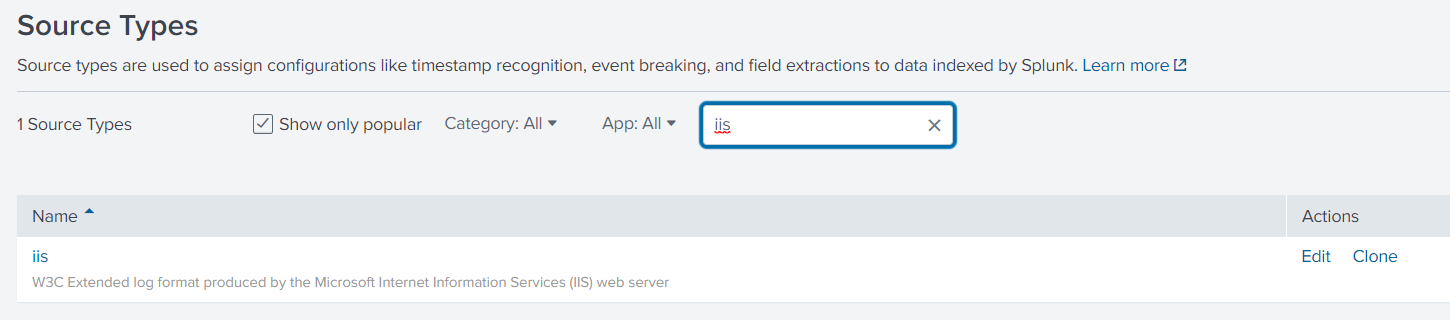
Configure Source Type
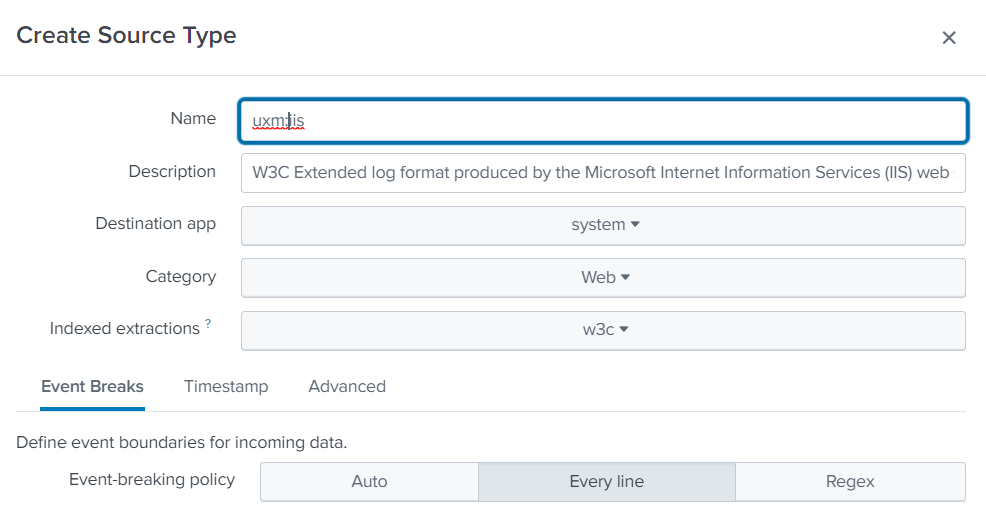
- Clone the IIS sourcetype on the indexer:
Settings → Source Types - Ensure events are received as
uxm:iis(for OEM license compliance)
Assign Forwarder to Deployment
-
Follow documentation:
https://docs.splunk.com/Documentation/Splunk/9.0.2/Updating/Updateconfigurations -
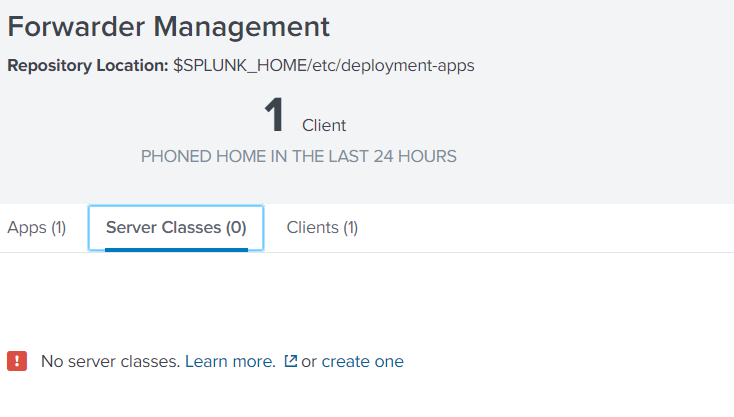
Create a server class:
- Go to Settings → Forwarder Management
 3. Add:
- Apps
- Clients (forwarders)
Verify Data Collection
- Data will start appearing in the configured index (
uxmapp_iis) - Use the IIS dashboard to visualize collected data
For more examples:
https://docs.splunk.com/Documentation/Splunk/9.0.2/Updating/Extendedexampledeployseveralstandardforwarders